
Productivity
A Clean Slate Without Losing Your Place
Clearing a desktop is easy. Ending a work session well means preserving the next step, protecting what must stay open, and making the reset predictable.
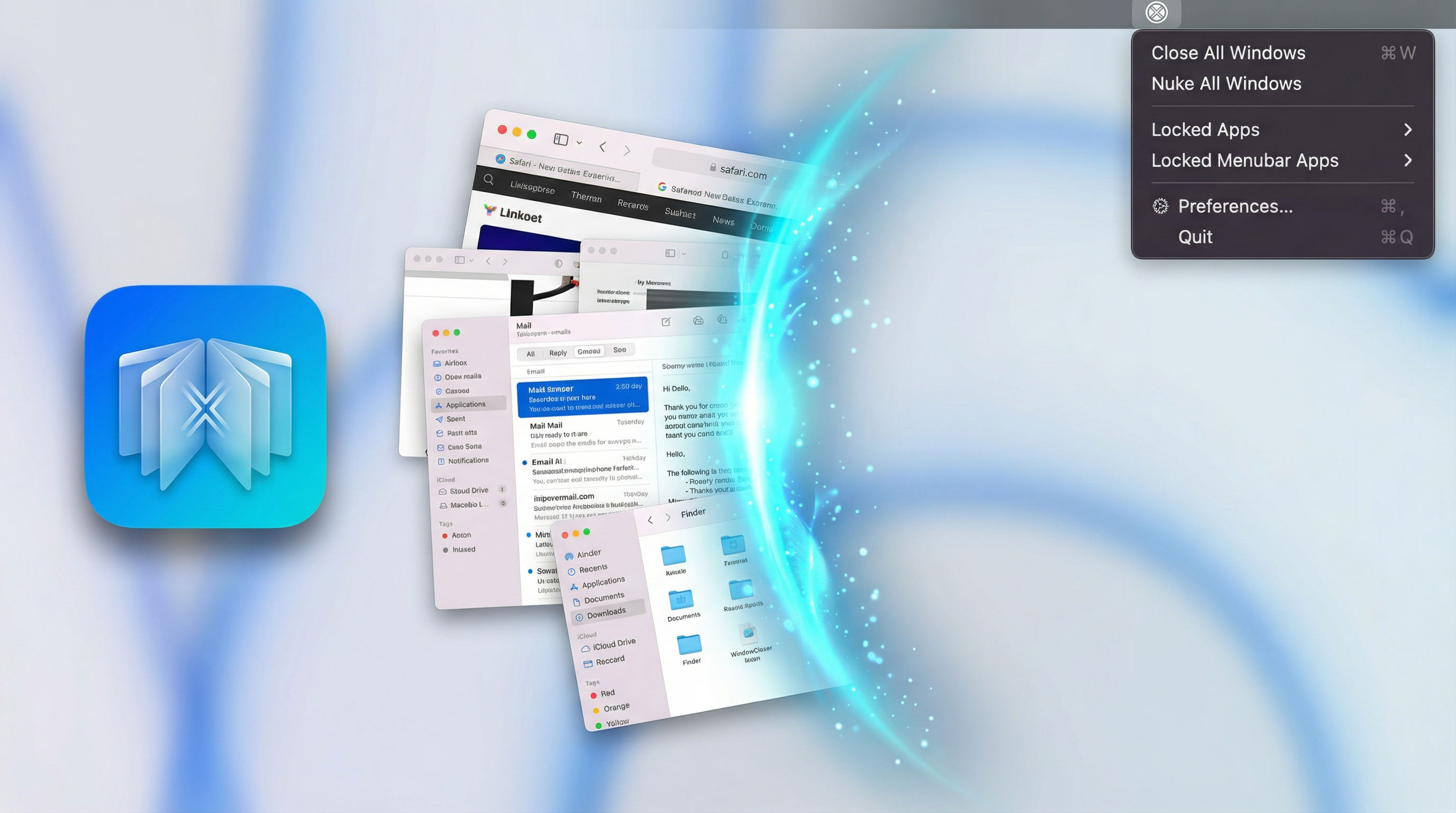
A desktop can become a memory aid
An open document often means more than a document you are editing. It can mean remember to send this, check that number, or continue here tomorrow. Over a long afternoon, windows become reminders for unfinished decisions as well as tools for doing the work.
That explains why clearing everything can feel surprisingly uncomfortable. The clutter may be distracting, but it also contains a rough map of the task. Removing the windows without preserving that map can leave a tidy desktop and a difficult restart the following morning.
A useful reset begins by moving the important reminders somewhere more dependable. WindowCloser can help with the final clearing action, but the preparation belongs to the workflow around it. The goal is to leave fewer things open while retaining enough context to resume deliberately.
Write the next action before closing
Before ending a session, write a short handoff to yourself. Include the document or project, the next concrete action, and anything that is still unresolved. A sentence such as check the totals in the revised proposal is easier to act on than a general reminder to finish the client work.
Suppose you have a proposal, three reference tabs, and a draft email open. Save the proposal, keep the references where you can retrieve them, and record whether the email is waiting for a figure or ready for review. Each item now has a reason to exist outside the desktop arrangement.
This does not require a new task-management system. A note in the project folder can be enough. The important test is whether you could reconstruct the next step after restarting the computer, without relying on a particular window still occupying a particular corner of the screen.
Choose what belongs in the protected set
A reset does not have to affect every app. You may want a call, a long-running task, or a tool you use throughout the day to remain available. WindowCloser's protected-app setting provides a way to make those exceptions explicit before running a broad action.
Start with the few applications whose interruption would be inconvenient. Review that selection against what the app actually protects: an application-level exception is broader than preserving one particular document. If you need a specific window to survive, do not assume a general close action understands that intention.
The product also protects background and menu bar apps by default, with settings to change that behavior. Treat defaults as something to inspect during setup. A short review is more reliable than discovering the meaning of a protection rule in the middle of an important session.
Know what the normal action does
The name WindowCloser can suggest that it only removes windows while leaving every application running. The product's FAQ describes the normal Close All action more specifically: it sends a standard quit request to unprotected applications. That distinction matters when deciding what to leave protected.
A standard quit request gives applications an opportunity to handle unsaved documents through their normal behavior. It should not be treated as a universal guarantee that every kind of work is saved. Different applications manage drafts, background activity, and restoration differently, so saving important work yourself remains the clearest first step.
Try the normal action with a small, noncritical setup before making it part of your daily routine. Notice which apps exit, which prompts appear, and what happens to Finder windows under your chosen settings. Familiar behavior makes a broad command much easier to use with confidence.
Keep force quit outside the daily ritual
WindowCloser also offers a force-quit action for situations where applications are unresponsive. That is a different operation from asking an app to close normally. It does not give the same opportunity to display a save prompt or finish handling work in progress.
A stubborn window can make the stronger action tempting, especially at the end of a long day. Before using it, identify what is unresponsive and what else the action will affect. Work that exists only in memory may be lost when an application is forced to stop.
Build the routine around the normal action and reserve force quit for deliberate recovery. The convenience of putting both operations in one tool does not make them interchangeable. Keeping that distinction clear is part of making the ordinary reset feel safe and predictable.
Reset at a meaningful boundary
A workspace reset is most useful when it marks a real change: moving from one project to another, finishing a review, or ending the day. Clearing the desktop every time it becomes visually busy can interrupt work that is still actively using those windows.
For a project transition, first save the outgoing work and record its next step. Then perform the reset and open only what the next task needs. That sequence gives the action a purpose beyond appearance. It helps distinguish material that belongs to the current task from material that merely remained open.
There is no need to make the desktop perfectly empty. A useful protected tool can remain, and a current reference may deserve to stay visible. The point is to make the surviving workspace intentional, with fewer leftovers asking you to remember why they are there.
Make tomorrow's restart the measure
The practical test comes when you return. Can you find the saved document? Does the handoff note explain what to do next? Are the references available without rebuilding yesterday's search? Those questions tell you more about the reset than the number of windows it removed.
If restarting is awkward, improve the handoff before adding more automation. Perhaps a note needs a filename, a research source needs a short explanation, or an app should join the protected set. Each adjustment addresses an observed interruption rather than an imagined ideal of a tidy workspace.
A good end-of-day ritual is brief enough to repeat and specific enough to help. Save, capture the next action, check the exceptions, and clear what is finished. WindowCloser handles the repeated closing step; the surrounding habit is what lets a clean slate keep its context.